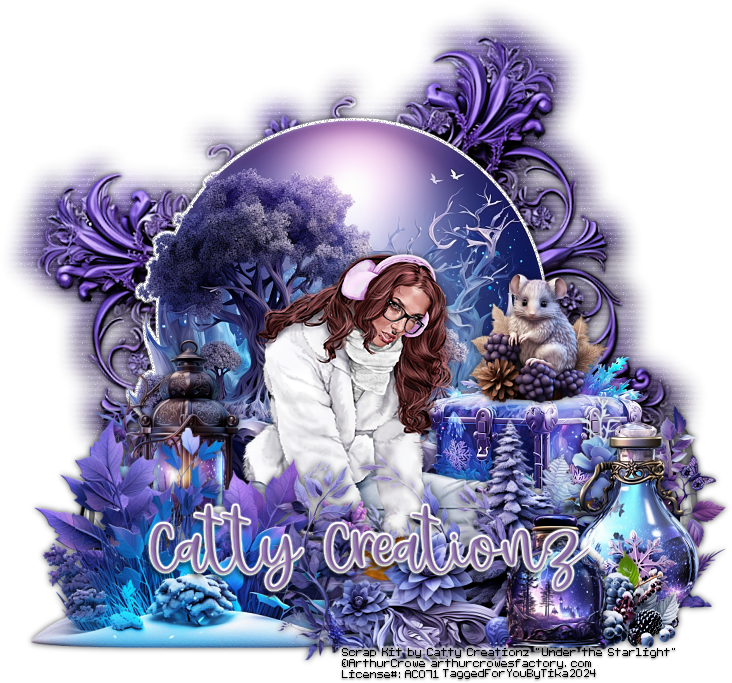
Fairy
Winter Woodland
Written
9/17/2026
This
tutorial is meant purely as a guide. Feel free to use your own choice of tube
or scrap kit to make your tag unique.If you want your tag to look just like
mine, then use the same supplies I have used. This tutorial assumes you have
knowledgeof paint shop pro. Any resemblance to any other tag or tutorial is
completely coincidental.
Supplies
Needed:
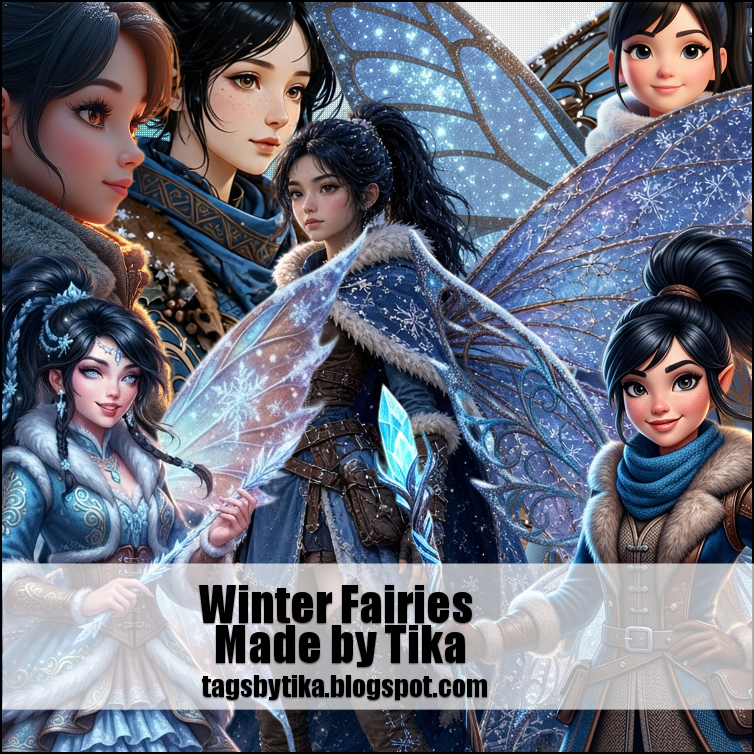
Tube
of your choice. You can get the tube I used at Tags
by Tika: Winter Fairies AI Tubes
Scrapkit
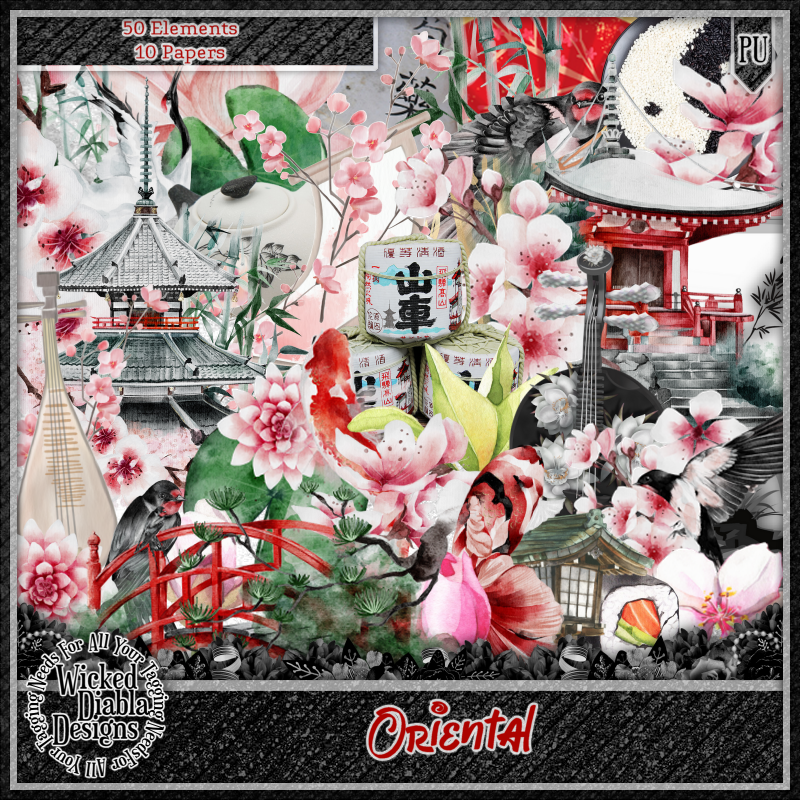
is a freebie from Addictive Pleasures. You can get this kit at ★Addicitve
♥ Pleasures ★: Winter Woodland
Font
of your choice. I am using Reebbett.
Plugins:
Mura
Meister Copies
Penta.com
Color dot
Lets
Begin:
Open
frame of your choice from the kit. I used frame 6.
Shift+D
to duplicate. Close the original. Resize as needed. Make your canvas large
enough to work with. You will crop at the end.
I
use a canvas of 1050x1050 but I like lots of room.
Using
your magic wand set to point to point select around the middle of your frame.
Layers
new raster layer.
Open paper of your choice. I used paper 6. Use the default settings but change
the value to 25.
Now
open your tube and copy and paste as a new layer. Place where you want. Mine is
to the left of the frame.
Now
we are going to begin to build the tag up.
Open
a group of flowers of your choice and copy and paste as a new layer. Resize by
50% and then again by 75%. Mura Meister Copies and select encircle. Use the
default settings.
Drag
this layer to the bottom of your layer palette.
Now
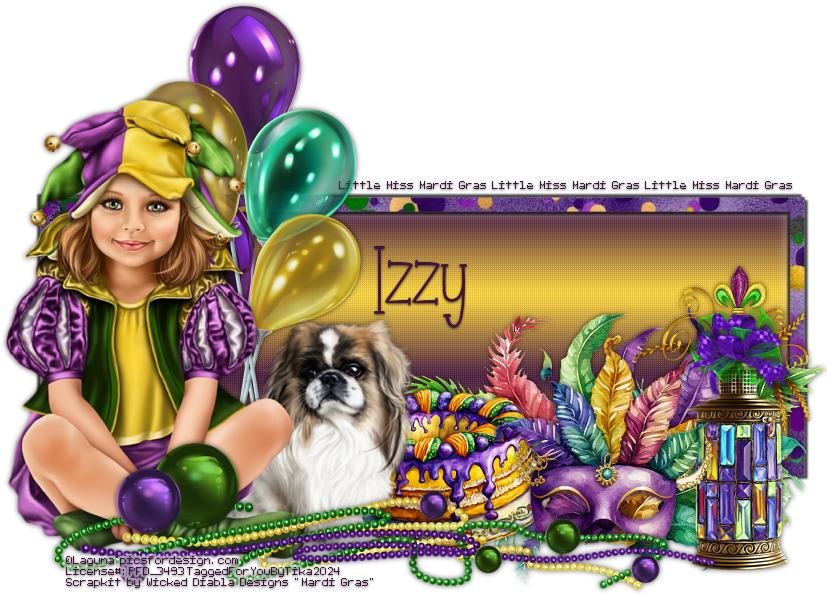
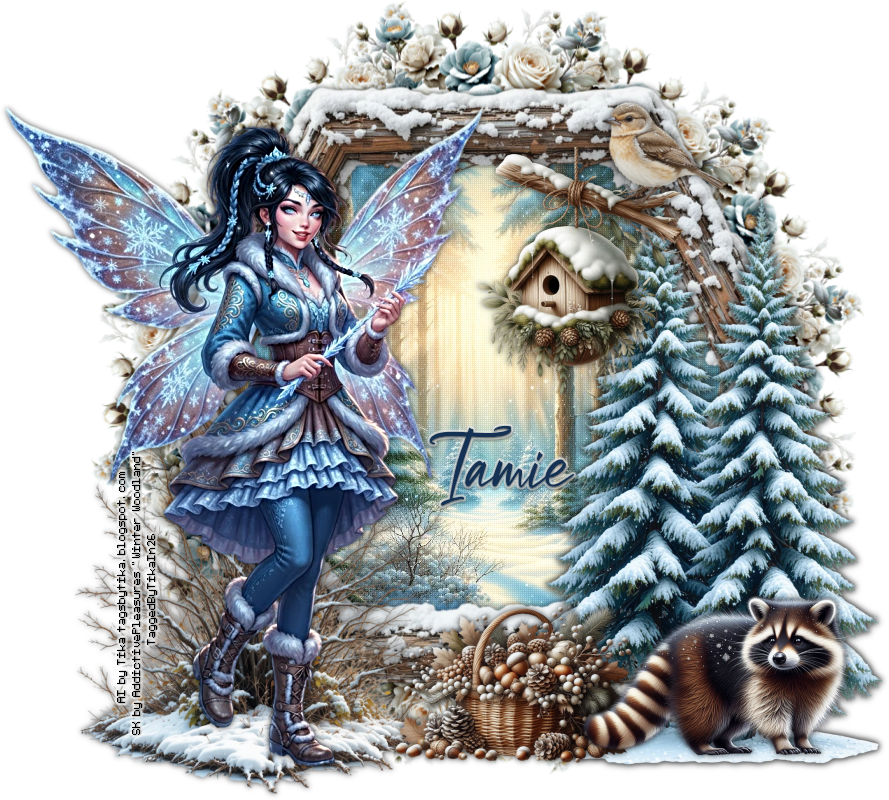
I will tell you what elements I used however you do not have to use the same
elements. This is where you can make the tag your own. If you want your tag to
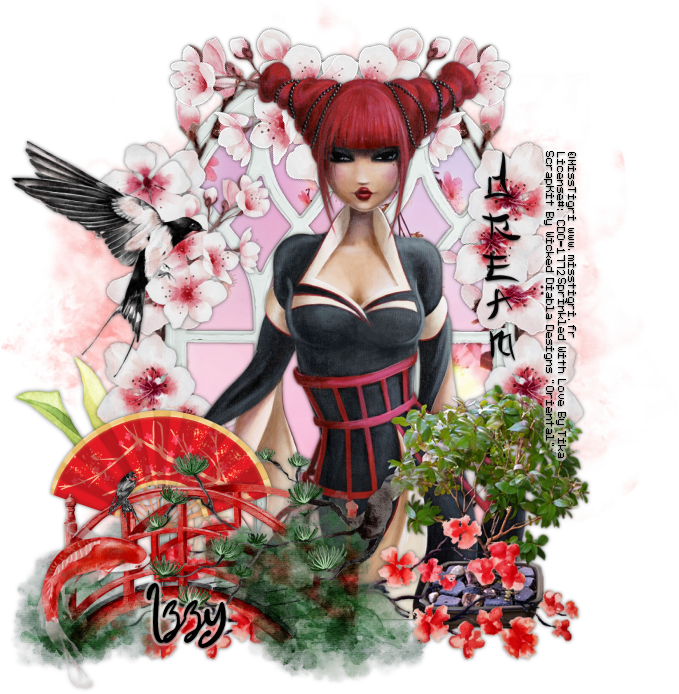
look just like mine then use my tag for reference.
Elements
Used:
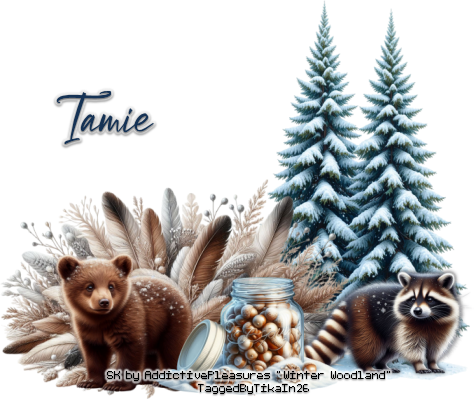
Winter
Woodland Tree 3
Winter
woodland animal 4
Winter
woodland Birdhouse 3
Winter
woodland bird 3
Winter
woodland bush 2
Make
sure you drop shadow everything. It gives it dimension and makes it look
better. I am using a drop shadow of 0 0
75 8.50 black
Add
your copyright and licensing information. Make sure you give Tamie credit for
the scrapkit as its respectful to do so.
Add
your name.
Crop
and save.
I
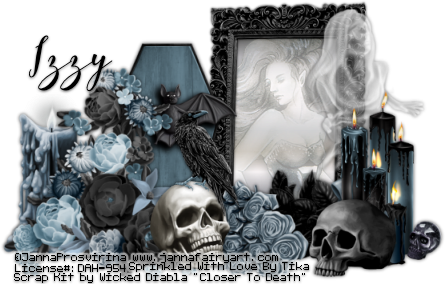
did make a set out of mine and its easy to do so just choose some elements that
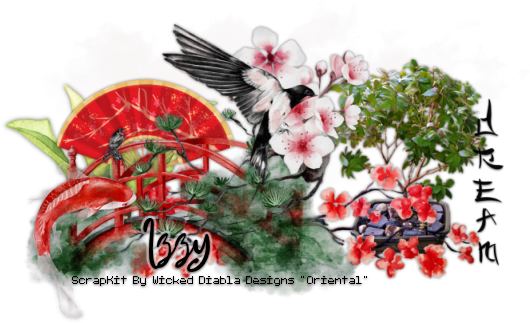
you want from the kit and build a banner and av.