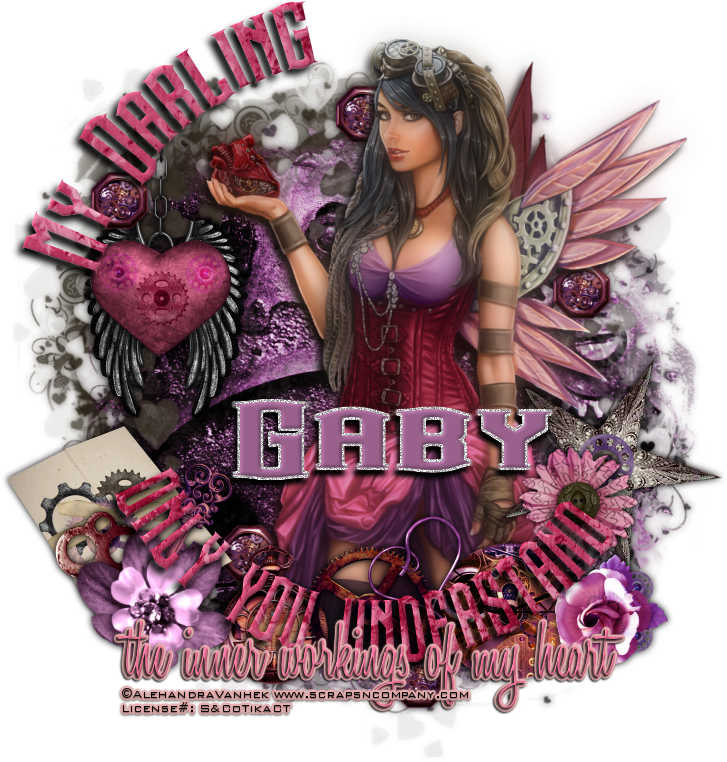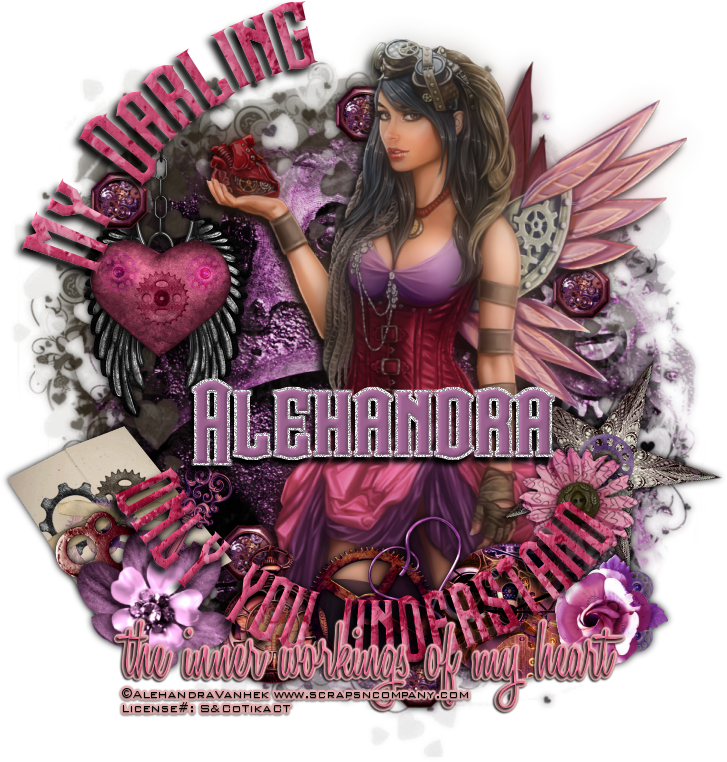
Inner Workings of my Heart
Written 2/4/2017
This tutorial is meant purely as a guide. Feel free to
use your own choice of tube or scrap kit to make your tag unique. If you want
your tag to look just like mine them use the same supplies I have used. This
tutorial assumes you have a knowledge of paint shop pro. Any resemblance to any
other tag or tutorial is completely coincidental.
Supplies Used:
Tube is by Alehandra Vanhek. She is called Mechanical
Heart. You can purchase her at http://scrapsncompany.com/index.php?main_page=product_info&cPath=113_499&products_id=25672
The scrap kit is by Disturbed Scraps. It is called
Mechanical Hearts. You can purchase it at http://scrapsncompany.com/index.php?main_page=product_info&products_id=25761
Mask of your choice. I am using one by Kisses and
Dreams. You can get it at http://kissesndreams.blogspot.ca/2015/01/freebie-heart-mask.html
Font of your choice. I am using Steamwreck which you
can download at http://www.fontspace.com/pixel-sagas/steamwreck
Plugins:
NONE
Let's Begin:
Open paper 3 and shift+D to duplicate. Close the
original. Promote the background layer to a raster layer. Apply the mask.
Delete the mask layer and merge the group. Add a drop shadow of 0 0 100 11.50
and the dark color from the paper. Open paper 14 and repeat but when adding
your drop shadow use a purple from the paper. Move this mask down and to the
right a bit.
Open your tube and copy and paste as a new layer.
Re-size as needed so she is just larger than the mask layers. Move to the right
side more so than the left. Duplicate the tube layer. On the top copy go to
adjust blur Gaussian blur and apply a blur of 11. Lower the opacity of this
layer to 45. Add a drop shadow to the bottom tube layer of 6 -5 100 10.50
black.
Now we are going to put some text on a path. Using
your elipse preset shape. Set your foreground color to whatever color you like.
It doesn’t matter as we will delete this layer anyhow. Turn off the background
color. Set the width of the elipse shape to 1.00. Draw out a circle around the
outside edges of the mask layer.
Now select the font you want to use and the
color or I used paper 7 for mine. Place your text tool up on the elipse shape
until you get the A with the line under it and then begin typing whatever it is
you want. I placed part of my text around the top left side and then I wanted
some along the bottom so I flipped my elipse shape vertical. This will turn the
text right side up. And placed the rest of my text along the bottom. Promote
your text layers to a raster layer. Add a drop shadow. Delete the elipse shape
layer when you are done.
Now let’s dress the tag up with elements from the kit.
I will list the elements I used. Feel free to use other elements to make your
tag unique. Placement of the elements is completely up to you. If you want your
tag to look just like mine then use my tag for reference.
Elements I used:
1
3
6
9
10
15
19
22
28
37
42
49
59
Add your name.
Add your copyright and licensing information.
Crop and re-size if you wish.
Save your tag.
♥♥♥